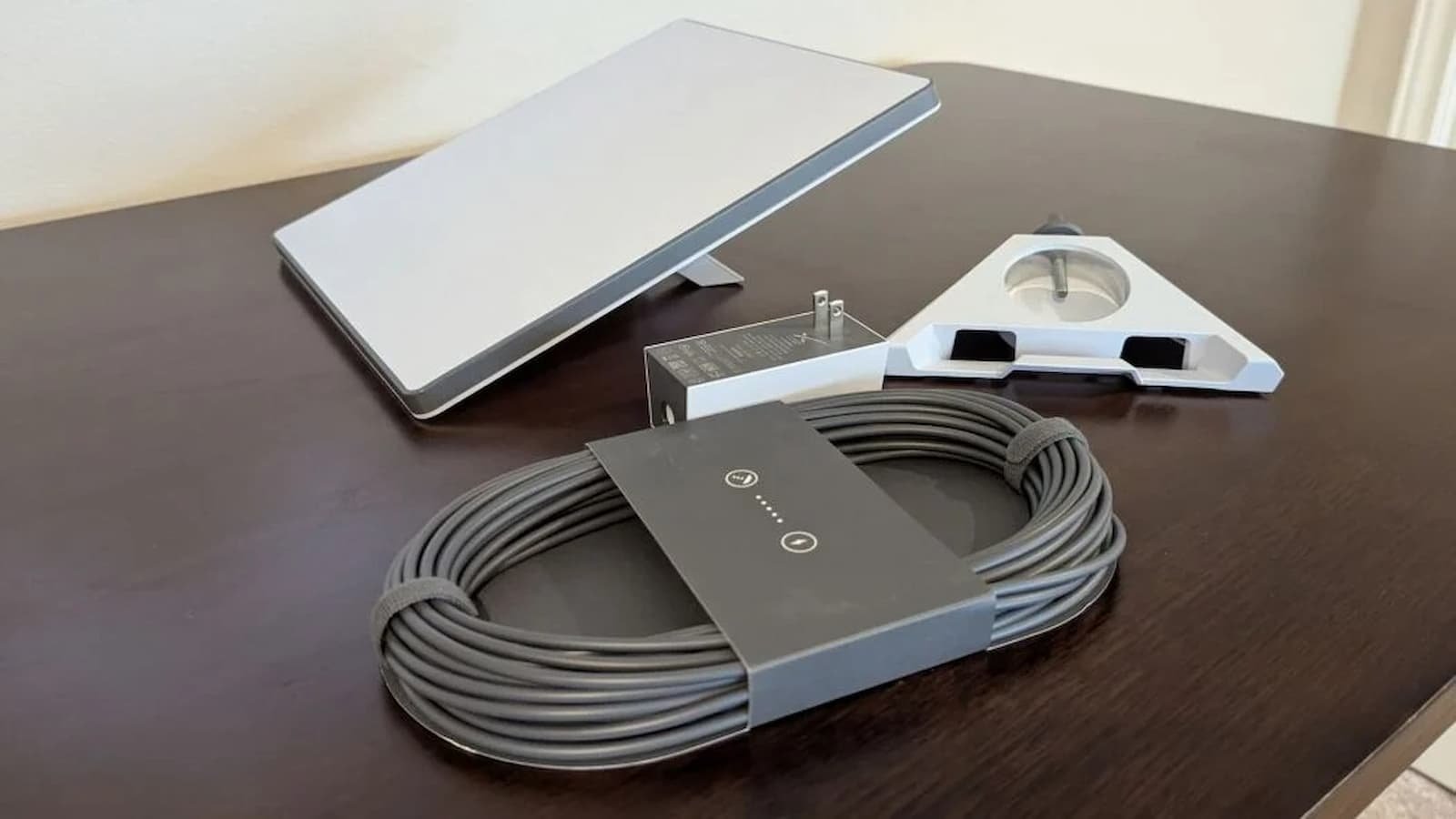
Starlink Mini Activation: Starlink Mini is made for people who want internet without carrying a large satellite dish and a separate router. It is small and easy to carry, so it can be useful for travel, camping, RV trips, remote work, rural areas and temporary work locations. The Mini also has Wi-Fi built into the unit, so a separate router is not needed for basic use.
If you already use Starlink, you do not need to make a completely new account just to add another Starlink. Starlink says an extra Starlink can be activated through its activation page by choosing “Existing Account.”
Wisely Card Activation: Simple Steps to Activate Your New Card
Before You Start the Starlink Mini Activation
1. Check the Starlink Identifier
Keep your Starlink Mini nearby before starting. You will need the Starlink Identifier or Terminal ID linked to the hardware. Starlink uses this number to identify the device during activation. It can be found on the hardware or through the Starlink app after connecting to the Mini.
You should also have access to your current Starlink account, your service address and a payment method. Make sure you are signing in to the account where you want the new Mini subscription to appear.
2. Check Used or Second-Hand Hardware
A used Mini can cause problems if it is still connected to another person’s account. Starlink says a Starlink that is already assigned to an account cannot be activated as a new service until the required transfer has been completed.
Steps to Activate Starlink Mini
1. Open Starlink Activation
Go to starlink.com/activate and enter the Starlink Identifier for your Mini. When asked how you want to set up the service, choose “Existing Account” instead of creating another account.
2. Add Your Address
Enter the service address requested during setup. Starlink uses the location to check which service options are available. Plan choices can depend on the country, address and local network capacity.
3. Pick a Service Plan
Choose the plan that fits your use. A fixed location may work better with a residential type plan, while people who travel may need a mobile or Roam option where available. Available plans are not the same everywhere.
4. Finish Billing
Check the plan price and billing information carefully. Add or confirm your payment details and select the option to place the order. Starlink states that placing the order activates the service and the service statement is then generated automatically.
Set Up the Starlink Mini After Activation

- Place the Starlink Mini outside where it has a clear view of the sky
- Keep it away from trees, buildings, roofs and poles
- Use the Starlink app to check for anything blocking the signal
- Connect the Mini to power using the included cable and power equipment
- Make sure the power connection is secure
- The Mini supports 12-48V DC power
- Connect your phone to the Starlink Wi-Fi network
- Open the Starlink app and follow the setup instructions
- Wait a few minutes for the Mini to connect to the satellites
Tracfone Activation Guide: New Devices, BYOP, and Number Transfers Explained
Common Activation Problems
- Kit Already Assigned: This normally means the Mini is still linked to another account. The previous owner needs to complete the transfer before the hardware can be activated on your account.
- Identifier Not Working: Check every character carefully and make sure you are entering the hardware identifier, not the Wi-Fi name or another order number.
- Mini is Offline: Open the Starlink app and check for alerts or obstruction warnings. Also check the power cable and connections.