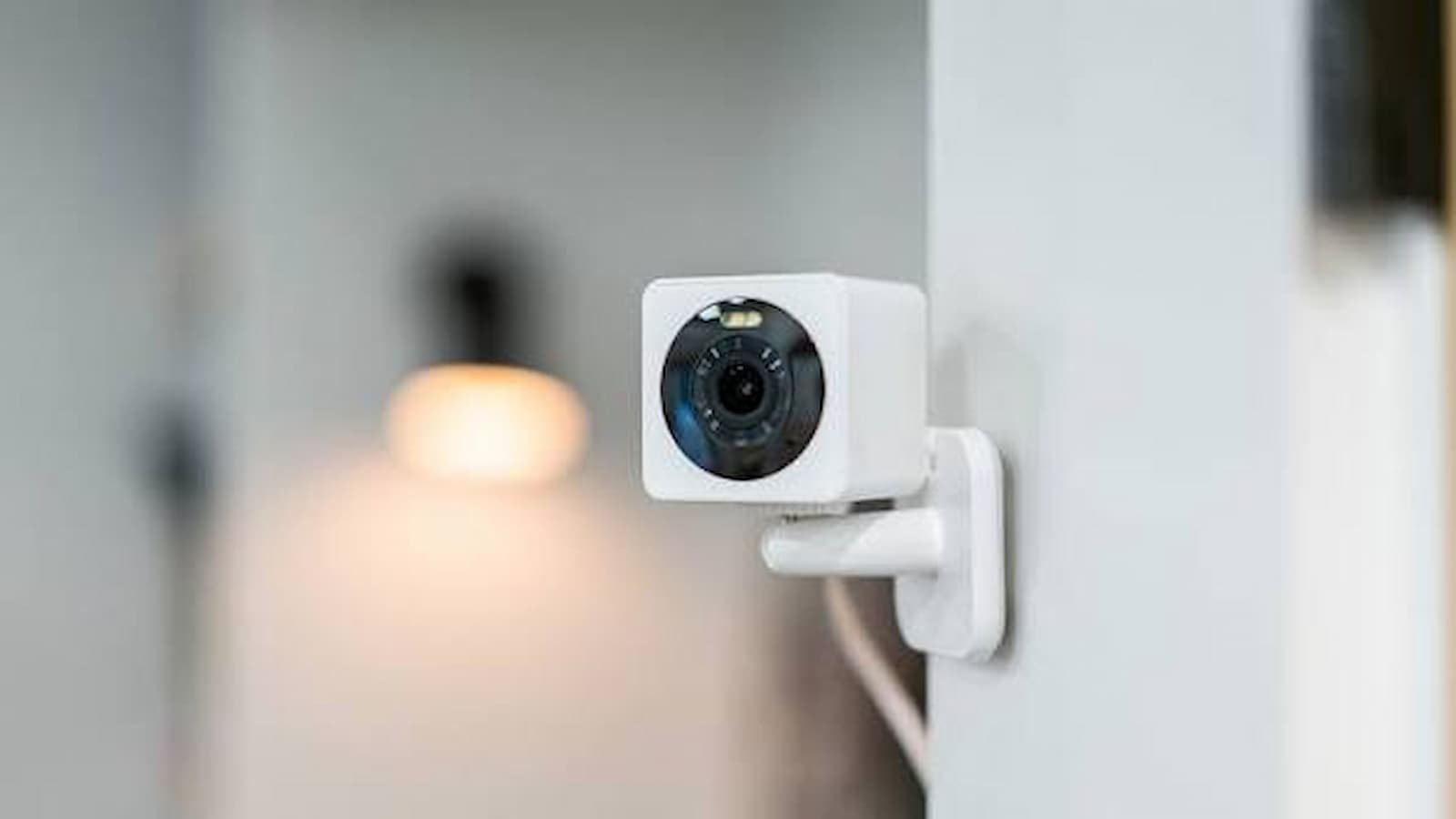
Wyze Cam Not Working: Wyze Cam can help you keep an eye on your home, office or other places. But like any other smart device, it can sometimes stop working properly. The camera may go offline, stop showing live video or have trouble connecting to Wi-Fi.
First, check power, Wi-Fi and the Wyze app. Wyze also recommends checking the camera’s status light because it can give a clue about what the camera is doing. For many Wyze cameras, a 2.4 GHz Wi-Fi connection is needed. Wyze also says a stable upload speed is important for live streaming. Its current guidance lists around 1–2 Mbps for SD streaming and 4–7 Mbps for HD streaming.
How to Borrow Money From Cash App: A Simple Step-by-Step Guide
Wyze Cam Not Connecting or Showing Offline?
If your camera is offline:
- Restart the camera by unplugging it, wait 5 to 10 seconds and plug it back in
- Restart the router
- Check Wi-Fi connection
- Many Wyze cameras need a 2.4 GHz network for setup and connection. Make sure this network is available on your router
- Enter the Wi-Fi name and password correctly
- If the signal is weak, place the camera closer to your router and try again
| Issue | Solution |
|---|---|
| Camera won’t connect to Wi-Fi | Restart your router and modem, then try setting up the camera again |
| App won’t detect the camera | Close and reopen the app, then try setting up the camera again |
| Camera not turning on | Check the power cord and outlet, then try setting up the camera again |
For some connection errors, Wyze recommends checking the router’s security and Wi-Fi settings. Older Wyze Cam v3 troubleshooting guidance says WPA/WPA2 security and 802.11 b/g/n Wi-Fi mode may be needed in certain setups.
Live Video and Audio
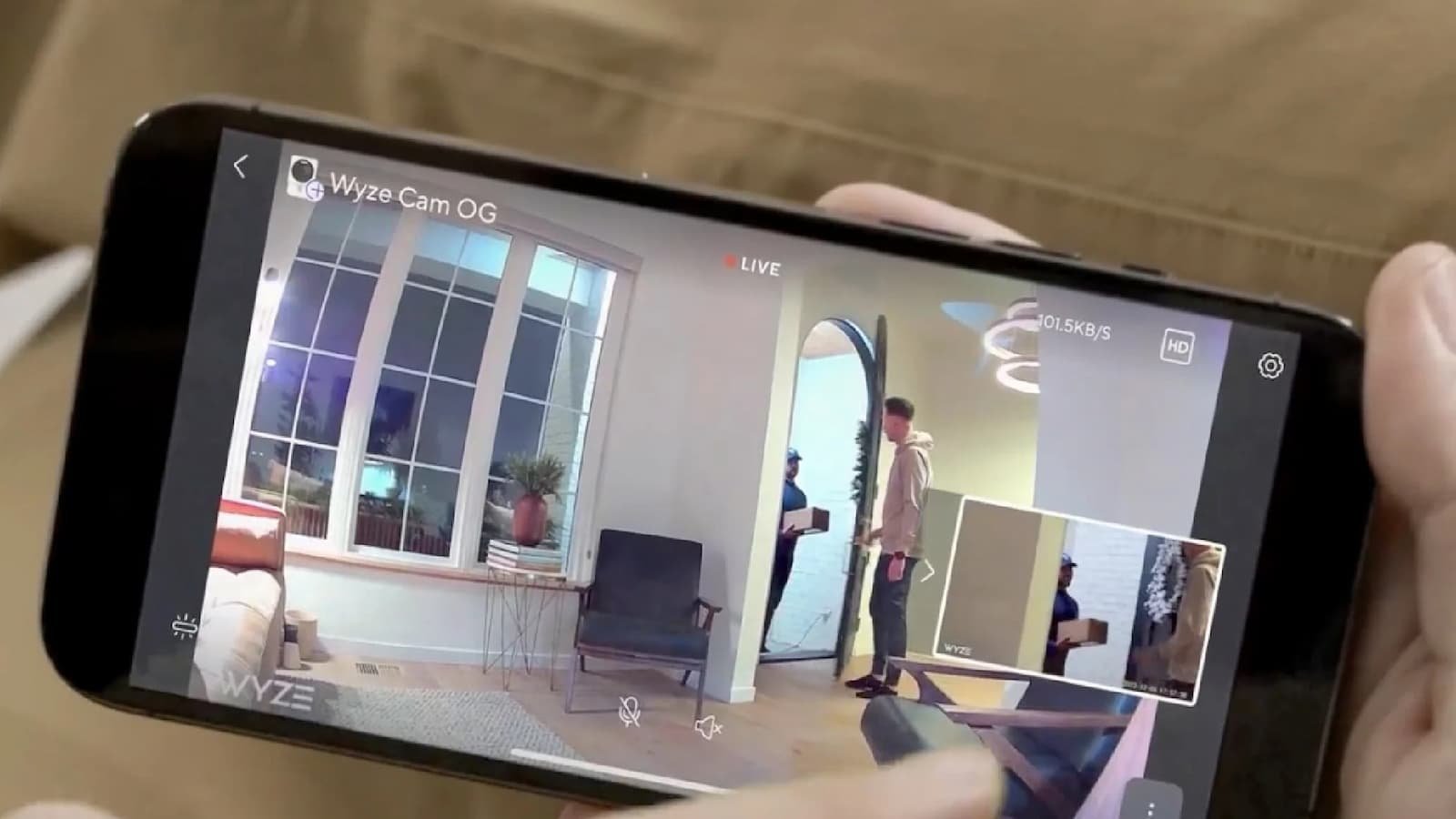
A black screen, poor video or a stream that keeps stopping can often be linked to the internet connection, camera signal or outdated software. First check the camera’s connection and make sure both the Wyze app and camera firmware are updated.
If the video quality is poor, move the camera closer to the router and reduce possible interference. Restarting the camera can also clear temporary connection problems. Wyze recommends checking upload speed because streaming depends on the connection from your camera to the internet.
Audio problems can have simple causes too.
| Issue | Solution |
|---|---|
| No audio | Check if the camera’s microphone is enabled in the Wyze app |
| Muffled audio | Verify the camera’s microphone is not blocked by any objects |
| Audio delay | Restart the Wyze Cam and check for firmware updates |
| Echo or feedback | Move the camera away from reflective surfaces or noisy areas |
| Audio not syncing with video | Restart the Wyze app and try live streaming again |
BlueChew Login Guide: How to Sign In, Manage Your Subscription, and Fix Account Issues
microSD Card
A microSD card is used for features such as local recordings on supported cameras. If the card is not being detected, remove it and check that it is properly inserted. A damaged or faulty card can also cause problems. Trying another compatible card can help find out whether the card itself is the issue.
Status Light
The status light on a Wyze Cam v3 can also help you understand what is happening:
- Solid blue: Your Wyze Cam is connected to your Wi-Fi network and operating normally.
- Flashing blue: The camera is trying to connect to your Wi-Fi network.
- Solid yellow: The camera is experiencing a firmware update or has detected a hardware issue.
Voice Prompt Problems
If your Wyze Cam is not giving voice prompts or the sound is not working properly, try a few simple things first.
- Restart the camera
- Check your phone volume
- Check the microphone
- Check background noise
If the problem is still there, you can reset the camera to factory settings or contact Wyze Support for help.
Check Your Wi-Fi Settings
A bad or weak Wi-Fi connection can also stop the Wyze Cam from working properly. During setup, make sure your phone or tablet is connected to the right Wi-Fi network.
- Wi-Fi name: Enter the network name correctly. It is case-sensitive, so even small mistakes can cause a problem.
- Wi-Fi password: Check the password carefully before trying to connect the camera.
- Use 2.4 GHz Wi-Fi: Some Wyze cameras need a 2.4 GHz network. For the Wyze Cam OG, a 2.4 GHz connection is needed because it does not connect directly to a 5 GHz-only network.
- Check the signal: If the camera is too far from the router, move it closer and try again.
Reset
If basic fixes do not work, a factory reset may be the next step. For Wyze Cam v1, v2, v3 and Pan v1, Wyze says to remove the microSD card first, keep the camera plugged in and hold the setup button for 10 seconds. The v1 requires 20 seconds. The reset clears the camera’s settings and means you will need to set it up again.
A reset should not be the first thing you try because it removes your existing setup. For current troubleshooting help, Wyze also provides service-status information, support and camera-specific guides.
How to Apply Online for the Hilton Honors American Express Card: Step-by-Step Guide
Additional Support and Resources
If issues persist after trying the troubleshooting steps, don’t hesitate to tap into additional support and resources for personalized assistance and potential solutions.
| Resource | Description |
|---|---|
| Service Status | Check for known issues on wyze.com and the Wyze app |
| Live Support | Contact support during available hours for personalized help |
| Wyze Community | Join the community to ask questions and connect with other users |
| Troubleshooting Guides | Review guides on the Wyze website for further assistance |
| Release Notes & Firmware | Stay informed about new features, updates, and bug fixes |